
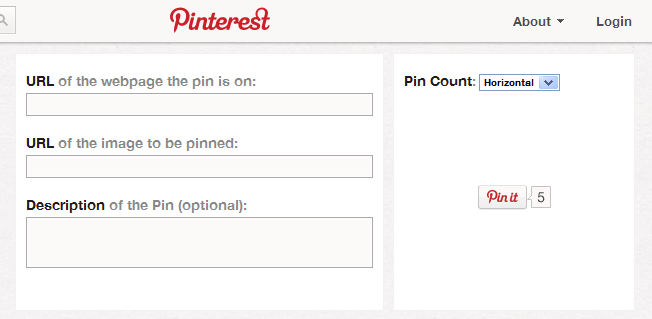
WordPress: How to add Pinterest ‘Pin It’ button
Pinterest is growing as a social media website and you can drive more traffic from Pinterest by allowing your readers to easily add it (or Pin It or Save) to Pinterest. Do you want to know how to add Pinterest Pin It button to your WordPress website or blog?
Over the years, Pinterest has changed and the easiest way of integrating Pinterest in WordPress is to use a plugin.

Pin it Button on Image Hover plugin provides facility to pins your blog posts, pages and images into your Pinterest account boards. Simply install then activate the plugin and start pinning.You can show or hide pin it button in post/page. You can enable or disable pin it button on image hover through plugin settings tab.
You can also use Pinterest Pin It Button For Images. The “Pin It” or save button is shown when someone hovers on images. Images can be saved directly to Pinterest by just clicking on the image. Have the user just hover the mouse over the image they want to pin and watch your visits grow!
The code below had been originally written many years ago. Please use at your own risk.
Just copy the following code and paste it just above the </body> tag in the footer.php file.
<script type="text/javascript">
(function() {
    window.PinIt = window.PinIt || { loaded:false };
    if (window.PinIt.loaded) return;
    window.PinIt.loaded = true;
    function async_load(){
        var s = document.createElement("script");
        s.type = "text/javascript";
        s.async = true;
        s.src = "https://assets.pinterest.com/js/pinit.js";
        var x = document.getElementsByTagName("script")[0];
        x.parentNode.insertBefore(s, x);
    }
    if (window.attachEvent)
        window.attachEvent("onload", async_load);
    else
        window.addEventListener("load", async_load, false);
})();
</script>
Now, add the following code in single.php and/or page.php at the desired locations to show the Pinterest ‘Pin It’ button in WordPress blog posts and pages.
<?php $pinterestimage = wp_get_attachment_image_src( get_post_thumbnail_id( $post->ID ), 'full' ); ?>
<a href="http://pinterest.com/pin/create/button/?url=<?php echo urlencode(get_permalink($post->ID)); ?>&media=<?php echo $pinterestimage[0]; ?>&description=<?php the_title(); ?>" class="pin-it-button" count-layout="vertical">Pin It</a>
If you want to have a shortcode to add Pinterest Pin It button at your desired locations in WordPress blog posts, don’t make any change to single.php or page.php. Just add the following code to your theme’s functions.php file.
<?php
function get_pin($atts) {
$pinterestimage = wp_get_attachment_image_src( get_post_thumbnail_id( $post->ID ), 'full' );
return '<a href="http://pinterest.com/pin/create/button/?url' . urlencode(get_permalink($post->ID)) . '&media=' . $pinterestimage[0] . '&description=' . get_the_title($post->ID) .'" class="pin-it-button" count-layout="vertical">Pin It</a>';
}

add_shortcode('pinit', 'get_pin');
?>
Now, you can add a Pinterest Pin It button by adding the shortcode [pinit] in your WordPress blog posts and pages. Start pinning.
I am sorry to say that after following your instructions to use ashortcode to add Pinterest Pin It button to the theme’s functions.php file, I got thw “white screen of death and could not login anywhere I use the wordpress twenty eleven theme. You have caused me a massive headache. I have now managed to finally restore the site, but there is now loads of work to be done to get it looking right again. Why have you given information that DOES NOT WORK?!?
Hey Jane,
Sorry to hear that the suggest code broke your theme. As I am awfully late, I can only say that the next time you have any trouble due to the codes listed on this site, please feel free to shoot an email. I promise to get back with a solution as soon as I receive the email. The same goes for all other readers.
Regards,
Pritam
Thank you for your reply.
Please excuse typing mistakes, I feel so angry that I can not see straight!